Speak to our specialist sales team | 0151 372 7766 | in**@**************co.uk
Public sector & education POs accepted


Explore our range of computer monitors and professional commercial displays at FutureVisuals. Whether you need a display for a workplace, educational setting, retail environment or digital signage installation, we offer solutions to suit a variety of applications.
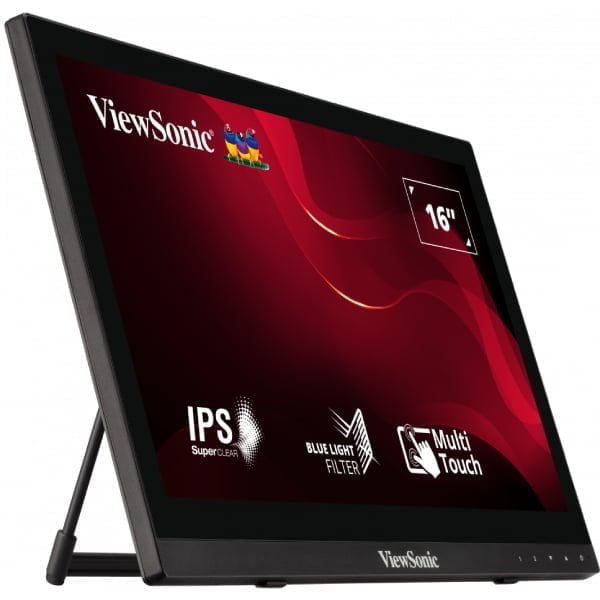
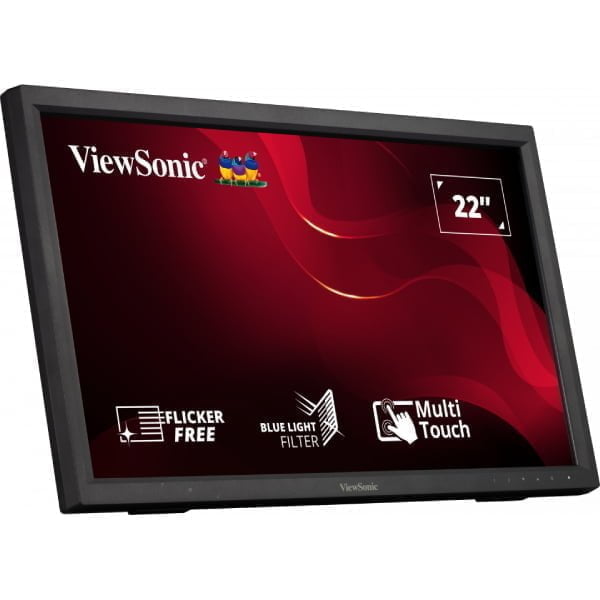
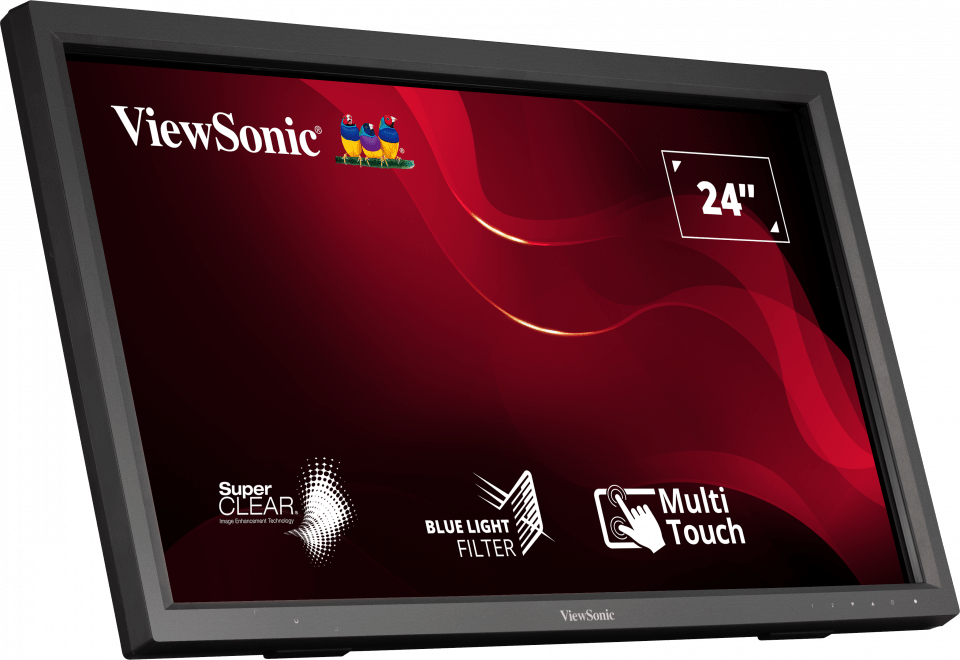
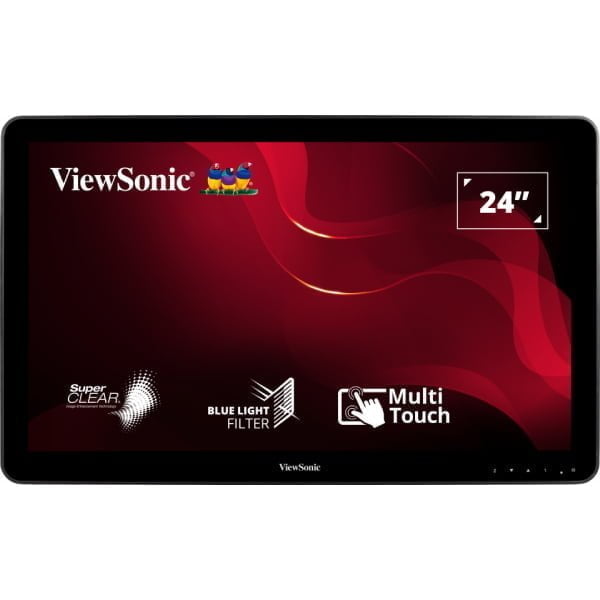
Choose from commercial-grade monitors, 4K displays and touch-screen monitors in a range of sizes and configurations. Depending on the model, features may include high-resolution visuals, wide viewing angles, landscape or portrait orientation and support for continuous operation.
We supply businesses, schools and public sector organisations across the UK, with bulk pricing and technical support available. Browse the range to compare display options, or contact our team for help choosing a monitor to suit your requirements.

When choosing a PC monitor, consider screen size, resolution, refresh rate and available connectivity. Think about how you’ll use the monitor, whether for office work, browsing, multitasking or general desktop computing. Check your computer’s available ports and the monitor’s specifications to ensure compatibility.
The right monitor size depends on your desk space, viewing distance and how you use your PC. Smaller monitors can suit compact workspaces, while 24-inch and 27-inch monitors are popular options for everyday computing and office work. Larger screens can provide more room for multitasking, provided you have enough desk space.
Full HD (1920 × 1080) is a common choice for everyday computing and office tasks. QHD (2560 × 1440) provides additional detail and workspace, while 4K (3840 × 2160) offers even higher resolution for compatible systems. Consider your screen size, intended use and your computer’s graphics capabilities when choosing a resolution.
Most PC monitors work with a wide range of computers, provided they have compatible video connections and support the required resolution. Common connections include HDMI, DisplayPort and VGA, although availability varies by model. Check your computer’s output ports and the monitor’s specifications before purchasing. An appropriate adapter may be required in some cases.
HDMI and DisplayPort both transmit digital video and, on supported devices, audio. The main differences relate to supported resolutions, refresh rates, features and device compatibility. The best connection depends on the ports available on your computer and monitor, along with the performance you require.
A standard 60Hz monitor is generally sufficient for everyday office tasks, including email, spreadsheets and web browsing. Higher refresh rates, such as 100Hz or 144Hz, can provide smoother movement and scrolling. Whether a higher refresh rate is worthwhile depends on your preferences, applications and computer hardware.
Yes, many desktop PCs and laptops support two monitors, allowing you to extend your desktop across both screens. However, support depends on your computer’s graphics hardware, available video outputs and docking or adapter capabilities. Check these specifications before purchasing an additional monitor.
Some PC monitors include built-in speakers, while others require separate speakers or headphones. Audio features vary by model, so check the individual product specifications before choosing a monitor.
If you’re looking for a complete audio and visual setup for meetings and presentations, explore our meeting room solutions, which can include dedicated speaker systems alongside other meeting room equipment.
© 2026 FutureVisuals, a trading name of All Office Ltd. | Website by Crayon Digital