Speak to our specialist sales team  |  0151 372 7766  |  in**@**************co.uk

Public sector & education POs accepted

Meeting Room Technology Nightmares: 7 Common AV Problems and How to Fix Them

We’ve all been there. The meeting is about to start, an important client is waiting, and suddenly the screen goes black. Nobody can hear the presenter, the video freezes, or someone spends five minutes searching for the right cable.

As businesses rely increasingly on hybrid working and video conferencing, reliable meeting room technology has become essential. The good news is that many common audio-visual (AV) problems can be prevented with the right equipment and room setup.

In this guide, we explore seven common meeting room technology nightmares, explain how to troubleshoot them and look at how intelligent meeting room solutions can make workplace collaboration easier.

Explore Meeting Room Solutions


1. The audio disappears: Why can’t anyone hear you?

“Can anybody hear me?”

Few phrases are more familiar in a video conference. Poor audio can make even the most important meeting frustrating, particularly when remote colleagues struggle to hear people sitting around the conference table.

Common causes include:

  • Microphones positioned too far away from speakers.
  • Background noise from air conditioning or office activity.
  • Incorrect microphone or speaker settings.
  • Echo caused by unsuitable audio configurations.
  • Faulty or disconnected equipment.

How to fix audio not working on PC

Start by checking that the correct microphone and speaker are selected in your video conferencing software. Test the audio before the meeting, check mute settings and ensure microphones are positioned appropriately for the room.

For larger spaces, built-in laptop microphones may not provide sufficient coverage. Dedicated conference microphones, professional speakers and audio processing can help capture voices more clearly and reduce distracting background noise.

The aim is simple: everyone should be able to hear and contribute without repeatedly asking colleagues to speak up.

Explore the right equipment:

The aim is simple: everyone should be able to hear and contribute without repeatedly asking colleagues to speak up.

2. The screen goes black: Where has the presentation gone?

You’ve prepared your slides, opened your presentation and connected your laptop. Then the display refuses to cooperate.

Display problems can result from loose HDMI or USB-C connections, incorrect input selection, unsupported display settings or equipment that hasn’t switched on properly.

How to fix screen going black on pc

Before replacing equipment, check the cable connections and confirm that the display is set to the correct input. Make sure your laptop recognises the external screen and that its display settings are compatible with the room’s equipment.

For frequently used meeting spaces, clearly labelled connections and straightforward screen-sharing options can make a significant difference. Wireless presentation systems can also reduce reliance on physical cables, provided they’re configured correctly and compatible with users’ devices.

A well-designed meeting room should make sharing content straightforward, rather than turning every presentation into a troubleshooting exercise.

Explore related products:

3. The missing cable: Why is starting a meeting so complicated?

The meeting starts in 30 seconds. Someone needs an adapter, another person has the wrong cable, and nobody knows how to connect their laptop to the display.

It sounds trivial, but inconsistent connections can waste valuable time across an organisation.

How to make sure you have the right cables

Standardise the equipment in your meeting rooms wherever possible. Provide clearly labelled connections, keep essential accessories accessible and establish a simple process for checking equipment between meetings.

Depending on the room, wireless screen sharing or a dedicated room system may provide a more convenient alternative.

The right approach depends on how people use the space. A small huddle room may need a simple video bar and display, while a large boardroom could require a more comprehensive AV installation.

Explore related solutions:

4. You’re still on mute: Can meeting room controls be simpler?

You’ve just delivered an excellent explanation, only to discover that your microphone was muted the entire time.

Sometimes the problem isn’t the equipment itself. It’s the user experience.

When meeting room controls are confusing, people waste time finding the correct settings, joining calls or switching between devices.

How to fix mute

Choose a meeting room system with intuitive controls and a consistent user experience. Touchscreen room controllers can make it easier to join scheduled meetings, manage calls and control compatible room equipment.

For example, the Logitech Tap IP touch controller is designed to simplify meeting room interaction, with one-touch joining available in supported room configurations.

For organisations using Microsoft Teams Rooms or Zoom Rooms, a properly configured room system can help employees start meetings without needing to connect and configure every component manually.

The less time people spend working out how the room operates, the more time they can spend collaborating.
Explore relevant products:

The less time people spend working out how the room operates, the more time they can spend collaborating.

Newsletter Logo Banner 2026 04 15T144924.647

5. The video call starts lagging: Is your network the problem?

“Sorry, you froze. Can you repeat that?”

Poor video quality, delayed audio and dropped calls can disrupt conversations and make collaboration difficult.

Although the network is a common suspect, the cause could also involve overloaded devices, software issues, wireless interference or problems with the conferencing service.

How to fix lag on pc

Start by checking your internet connection and testing whether other devices or applications are experiencing similar problems. If possible, use a reliable wired network connection for fixed room systems.

IT teams should also review network capacity, bandwidth usage, firewall requirements and the configuration of their conferencing platforms.

It’s important to remember that even the best camera and microphone cannot compensate for an unreliable network. A dependable meeting experience requires the AV equipment, software and network to work together.


6. Nobody can see everyone: Is your meeting room camera suitable?

Someone at the far end of the table is barely visible. Another participant is sitting outside the camera’s field of view, and remote attendees can’t tell who is speaking.

A camera that works well on a laptop may not be suitable for a professional conference room.

How to fix pc camera not working

Consider the size and layout of your room, the number of participants and the distance between the camera and the people attending.

For smaller rooms, an all-in-one conference camera such as the Logitech MeetUp may be suitable. Medium and larger spaces may benefit from a video bar such as the Logitech Rally Bar, while a professional pan-tilt-zoom (PTZ) camera can offer greater flexibility for larger rooms and presentations.

Modern meeting room systems may also include AI-assisted camera framing, speaker tracking and audio noise suppression. Depending on the device and configuration, these features can help frame participants more effectively and make conversations easier to follow.

The objective is to create a more natural experience for remote attendees, allowing them to see and hear the people in the room clearly.

Explore camera options:

Choosing the right camera helps remote attendees see and hear the people in the room clearly.


7. The meeting takes ten minutes to start: Could your room be more intelligent?

Different rooms have different cameras, cables, controllers and instructions. Employees have to remember how each space works, and IT teams spend valuable time responding to avoidable support requests.

This is where intelligent meeting room technology can help.

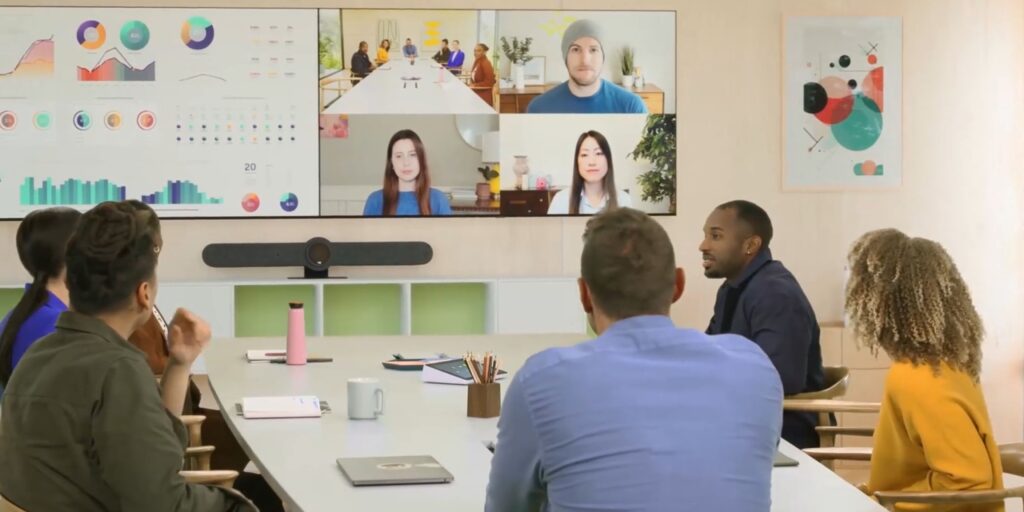
An intelligent meeting room brings together compatible cameras, microphones, speakers, displays, room controls and collaboration software to create a more consistent meeting experience.

Depending on the solution, features can include:

  • One-touch meeting joining: Start scheduled calls using a compatible room controller.
  • AI-powered camera framing: Automatically adjust the view to include participants.
  • Speaker tracking: Follow the active speaker on supported camera systems.
  • Audio enhancement: Reduce certain background noises and improve speech clarity.
  • Centralised device management: Monitor compatible equipment, check device health and manage updates remotely.

These capabilities can make meetings easier to start and manage, although the exact features depend on the hardware, software, licensing and room configuration.

What is the difference between a smart meeting room and an intelligent meeting room?

The terms are often used interchangeably. Both generally describe meeting spaces that use connected technology to improve collaboration and simplify room operation.

A smart meeting room might focus on convenient controls, automated displays and integrated conferencing equipment. An intelligent meeting room may place greater emphasis on AI-assisted features, such as camera framing, speaker tracking, noise suppression and room analytics.

Neither term guarantees a particular set of capabilities. The important question is whether the system solves the practical problems your employees experience.

Newsletter Logo Banner 2026 04 15T144524.681

Choosing the right meeting room technology

There is no single solution for every workplace. The right setup depends on the size of the room, how many people use it, the conferencing platform and the type of collaboration taking place.

When evaluating your options, consider:

  • Room size: Will the camera and microphones cover everyone?
  • Conferencing platform: Do you need Microsoft Teams Rooms, Zoom Rooms or a flexible BYOD setup?
  • Ease of use: Can employees start meetings without technical assistance?
  • Connectivity: Are wired and wireless sharing options suitable for your organisation?
  • Manageability: Can your IT team monitor and maintain devices efficiently?
  • Future requirements: Will the system support your planned hybrid working and collaboration needs?

FutureVisuals offers meeting room equipment and conferencing solutions for different room sizes, including Logitech cameras, room controllers and complete room systems.

Explore the available options to find technology that fits your workplace and helps reduce the everyday frustrations that interrupt productive meetings.

Banish the meeting room nightmares

From disappearing audio to unreliable video calls, meeting room technology problems can waste time, disrupt conversations and frustrate employees.

The solution isn’t necessarily to buy more equipment. It’s to choose the right combination of AV hardware, software, connectivity and room controls, then configure it around the way your teams work.

With a well-designed meeting room, people can spend less time troubleshooting and more time sharing ideas.

Ready to improve your meeting rooms? Explore FutureVisuals’ meeting room solutions and discover the options available for your workplace.
Home / Blog / Meeting Room Technology Nightmares: 7 Common AV Problems and How to Fix Them
Blogs14 Oct 2026

Meeting Room Technology Nightmares: 7 Common AV Problems and How to Fix Them

We’ve all been there. The meeting is about to start, an important client is waiting, and suddenly the screen goes black. Nobody can hear the presenter, the video freezes, or someone spends five minutes searching for the right cable.

As businesses rely increasingly on hybrid working and video conferencing, reliable meeting room technology has become essential. The good news is that many common audio-visual (AV) problems can be prevented with the right equipment and room setup.

In this guide, we explore seven common meeting room technology nightmares, explain how to troubleshoot them and look at how intelligent meeting room solutions can make workplace collaboration easier.

Explore Meeting Room Solutions


1. The audio disappears: Why can’t anyone hear you?

“Can anybody hear me?”

Few phrases are more familiar in a video conference. Poor audio can make even the most important meeting frustrating, particularly when remote colleagues struggle to hear people sitting around the conference table.

Common causes include:

  • Microphones positioned too far away from speakers.
  • Background noise from air conditioning or office activity.
  • Incorrect microphone or speaker settings.
  • Echo caused by unsuitable audio configurations.
  • Faulty or disconnected equipment.

How to fix audio not working on PC

Start by checking that the correct microphone and speaker are selected in your video conferencing software. Test the audio before the meeting, check mute settings and ensure microphones are positioned appropriately for the room.

For larger spaces, built-in laptop microphones may not provide sufficient coverage. Dedicated conference microphones, professional speakers and audio processing can help capture voices more clearly and reduce distracting background noise.

The aim is simple: everyone should be able to hear and contribute without repeatedly asking colleagues to speak up.

Explore the right equipment:

The aim is simple: everyone should be able to hear and contribute without repeatedly asking colleagues to speak up.

2. The screen goes black: Where has the presentation gone?

You’ve prepared your slides, opened your presentation and connected your laptop. Then the display refuses to cooperate.

Display problems can result from loose HDMI or USB-C connections, incorrect input selection, unsupported display settings or equipment that hasn’t switched on properly.

How to fix screen going black on pc

Before replacing equipment, check the cable connections and confirm that the display is set to the correct input. Make sure your laptop recognises the external screen and that its display settings are compatible with the room’s equipment.

For frequently used meeting spaces, clearly labelled connections and straightforward screen-sharing options can make a significant difference. Wireless presentation systems can also reduce reliance on physical cables, provided they’re configured correctly and compatible with users’ devices.

A well-designed meeting room should make sharing content straightforward, rather than turning every presentation into a troubleshooting exercise.

Explore related products:

3. The missing cable: Why is starting a meeting so complicated?

The meeting starts in 30 seconds. Someone needs an adapter, another person has the wrong cable, and nobody knows how to connect their laptop to the display.

It sounds trivial, but inconsistent connections can waste valuable time across an organisation.

How to make sure you have the right cables

Standardise the equipment in your meeting rooms wherever possible. Provide clearly labelled connections, keep essential accessories accessible and establish a simple process for checking equipment between meetings.

Depending on the room, wireless screen sharing or a dedicated room system may provide a more convenient alternative.

The right approach depends on how people use the space. A small huddle room may need a simple video bar and display, while a large boardroom could require a more comprehensive AV installation.

Explore related solutions:

4. You’re still on mute: Can meeting room controls be simpler?

You’ve just delivered an excellent explanation, only to discover that your microphone was muted the entire time.

Sometimes the problem isn’t the equipment itself. It’s the user experience.

When meeting room controls are confusing, people waste time finding the correct settings, joining calls or switching between devices.

How to fix mute

Choose a meeting room system with intuitive controls and a consistent user experience. Touchscreen room controllers can make it easier to join scheduled meetings, manage calls and control compatible room equipment.

For example, the Logitech Tap IP touch controller is designed to simplify meeting room interaction, with one-touch joining available in supported room configurations.

For organisations using Microsoft Teams Rooms or Zoom Rooms, a properly configured room system can help employees start meetings without needing to connect and configure every component manually.

The less time people spend working out how the room operates, the more time they can spend collaborating.

Explore relevant products:

The less time people spend working out how the room operates, the more time they can spend collaborating.

Newsletter Logo Banner 2026 04 15T144924.647

5. The video call starts lagging: Is your network the problem?

“Sorry, you froze. Can you repeat that?”

Poor video quality, delayed audio and dropped calls can disrupt conversations and make collaboration difficult.

Although the network is a common suspect, the cause could also involve overloaded devices, software issues, wireless interference or problems with the conferencing service.

How to fix lag on pc

Start by checking your internet connection and testing whether other devices or applications are experiencing similar problems. If possible, use a reliable wired network connection for fixed room systems.

IT teams should also review network capacity, bandwidth usage, firewall requirements and the configuration of their conferencing platforms.

It’s important to remember that even the best camera and microphone cannot compensate for an unreliable network. A dependable meeting experience requires the AV equipment, software and network to work together.


6. Nobody can see everyone: Is your meeting room camera suitable?

Someone at the far end of the table is barely visible. Another participant is sitting outside the camera’s field of view, and remote attendees can’t tell who is speaking.

A camera that works well on a laptop may not be suitable for a professional conference room.

How to fix pc camera not working

Consider the size and layout of your room, the number of participants and the distance between the camera and the people attending.

For smaller rooms, an all-in-one conference camera such as the Logitech MeetUp may be suitable. Medium and larger spaces may benefit from a video bar such as the Logitech Rally Bar, while a professional pan-tilt-zoom (PTZ) camera can offer greater flexibility for larger rooms and presentations.

Modern meeting room systems may also include AI-assisted camera framing, speaker tracking and audio noise suppression. Depending on the device and configuration, these features can help frame participants more effectively and make conversations easier to follow.

The objective is to create a more natural experience for remote attendees, allowing them to see and hear the people in the room clearly.

Explore camera options:

Choosing the right camera helps remote attendees see and hear the people in the room clearly.


7. The meeting takes ten minutes to start: Could your room be more intelligent?

Different rooms have different cameras, cables, controllers and instructions. Employees have to remember how each space works, and IT teams spend valuable time responding to avoidable support requests.

This is where intelligent meeting room technology can help.

An intelligent meeting room brings together compatible cameras, microphones, speakers, displays, room controls and collaboration software to create a more consistent meeting experience.

Depending on the solution, features can include:

  • One-touch meeting joining: Start scheduled calls using a compatible room controller.
  • AI-powered camera framing: Automatically adjust the view to include participants.
  • Speaker tracking: Follow the active speaker on supported camera systems.
  • Audio enhancement: Reduce certain background noises and improve speech clarity.
  • Centralised device management: Monitor compatible equipment, check device health and manage updates remotely.

These capabilities can make meetings easier to start and manage, although the exact features depend on the hardware, software, licensing and room configuration.

What is the difference between a smart meeting room and an intelligent meeting room?

The terms are often used interchangeably. Both generally describe meeting spaces that use connected technology to improve collaboration and simplify room operation.

A smart meeting room might focus on convenient controls, automated displays and integrated conferencing equipment. An intelligent meeting room may place greater emphasis on AI-assisted features, such as camera framing, speaker tracking, noise suppression and room analytics.

Neither term guarantees a particular set of capabilities. The important question is whether the system solves the practical problems your employees experience.

Newsletter Logo Banner 2026 04 15T144524.681

Choosing the right meeting room technology

There is no single solution for every workplace. The right setup depends on the size of the room, how many people use it, the conferencing platform and the type of collaboration taking place.

When evaluating your options, consider:

  • Room size: Will the camera and microphones cover everyone?
  • Conferencing platform: Do you need Microsoft Teams Rooms, Zoom Rooms or a flexible BYOD setup?
  • Ease of use: Can employees start meetings without technical assistance?
  • Connectivity: Are wired and wireless sharing options suitable for your organisation?
  • Manageability: Can your IT team monitor and maintain devices efficiently?
  • Future requirements: Will the system support your planned hybrid working and collaboration needs?

FutureVisuals offers meeting room equipment and conferencing solutions for different room sizes, including Logitech cameras, room controllers and complete room systems.

Explore the available options to find technology that fits your workplace and helps reduce the everyday frustrations that interrupt productive meetings.

Banish the meeting room nightmares

From disappearing audio to unreliable video calls, meeting room technology problems can waste time, disrupt conversations and frustrate employees.

The solution isn’t necessarily to buy more equipment. It’s to choose the right combination of AV hardware, software, connectivity and room controls, then configure it around the way your teams work.

With a well-designed meeting room, people can spend less time troubleshooting and more time sharing ideas.

Ready to improve your meeting rooms? Explore FutureVisuals’ meeting room solutions and discover the options available for your workplace.

Thinking about technology for your space?

Book a free demo

© 2026 FutureVisuals, a trading name of All Office Ltd. | Website by Crayon Digital